首先打开Actions页面 新建workflow(第一种方法 )
- 首先打开你Fork的项目,打开Actions页面,点击new workflow,选择set up a workflow yourself进入编辑页面。
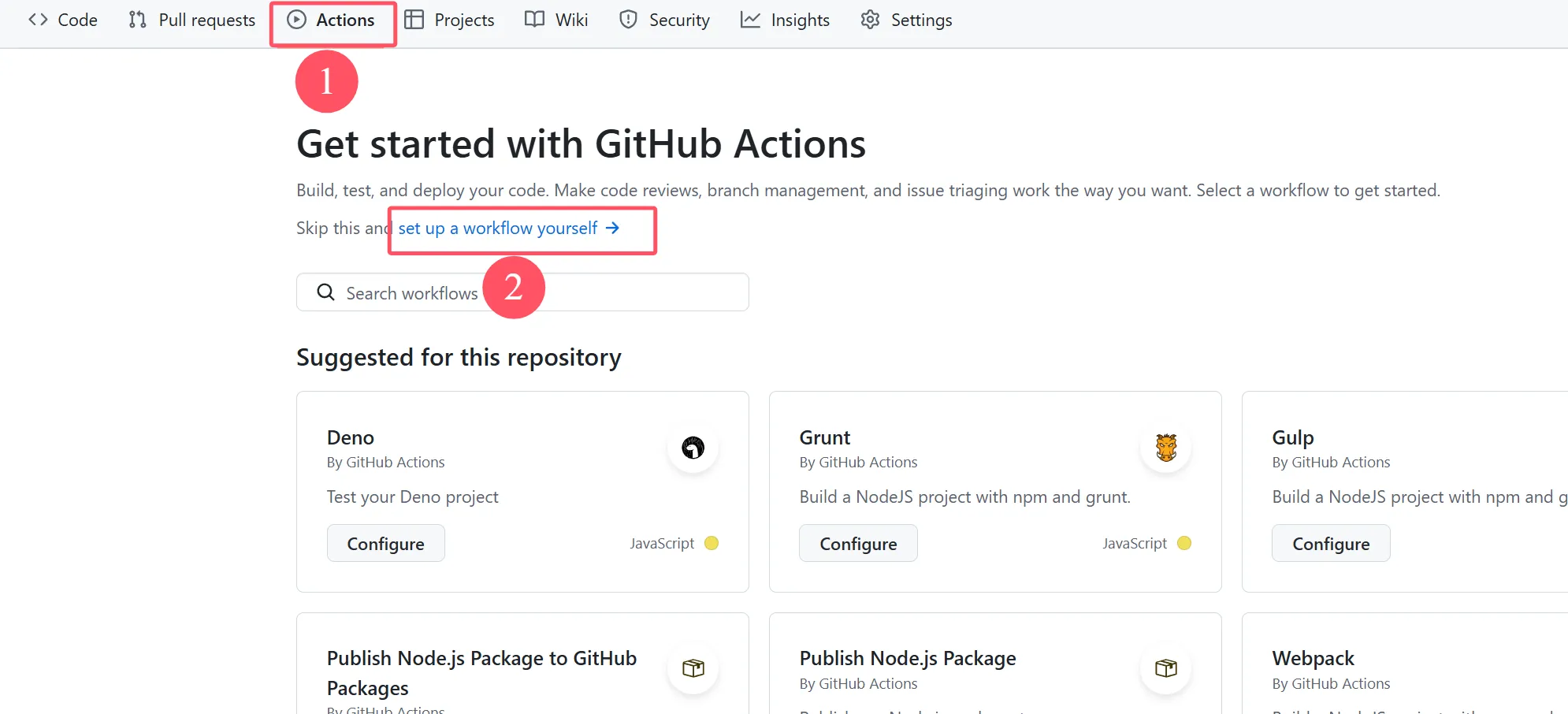
编辑文件
- 文件取名为sync.yml,然后输入以下代码:
name: Upstream Sync
permissions:    contents: write
on:    schedule:        - cron: "0 0 * * *"    workflow_dispatch:
jobs:    sync_with_upstream:        name: Sync with Upstream        runs-on: ubuntu-latest        if: ${{ github.event.repository.fork }}
        steps:            - name: Checkout target repo              uses: actions/checkout@v3
            - name: Sync Upstream              uses: aormsby/Fork-Sync-With-Upstream-action@v3.4              with:                  target_repo_token: ${{ secrets.GITHUB_TOKEN }}                  upstream_sync_repo: shaoyouvip/uptime                  upstream_sync_branch: main                  target_sync_branch: main                  test_mode: false
            - name: Check for Failure              if: failure()              run: |                  echo "[Error] Due to a change in the workflow file of the upstream repository, GitHub has automatically suspended the scheduled automatic update. You need to manually sync your fork."                  exit 1
修改配置
-
定时任务执行间隔
- 修改cron项,这里是 ** 0 0 * * * **,代表每天0点执行一次
-
要同步的仓库路径
- 修改 upstream_sync_repo 项,这里要填你fork的仓库路径,在你fork项目的的名字下方能看到。
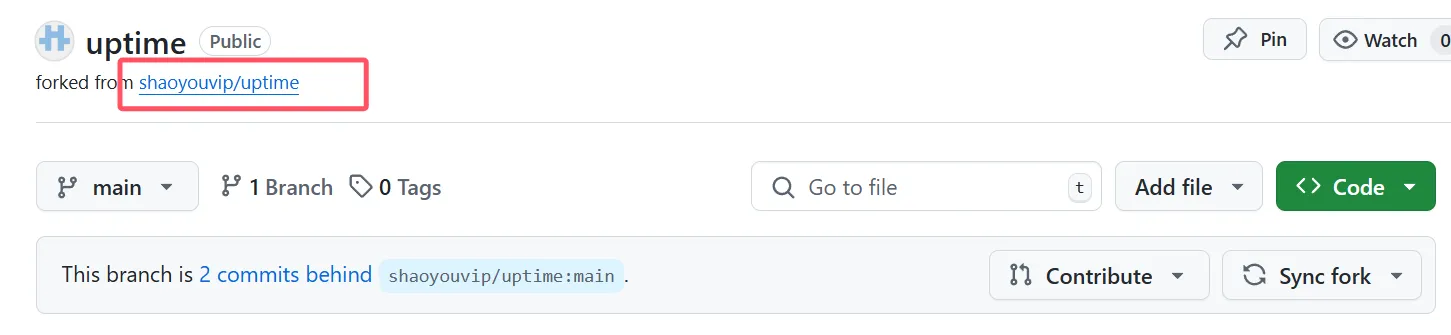
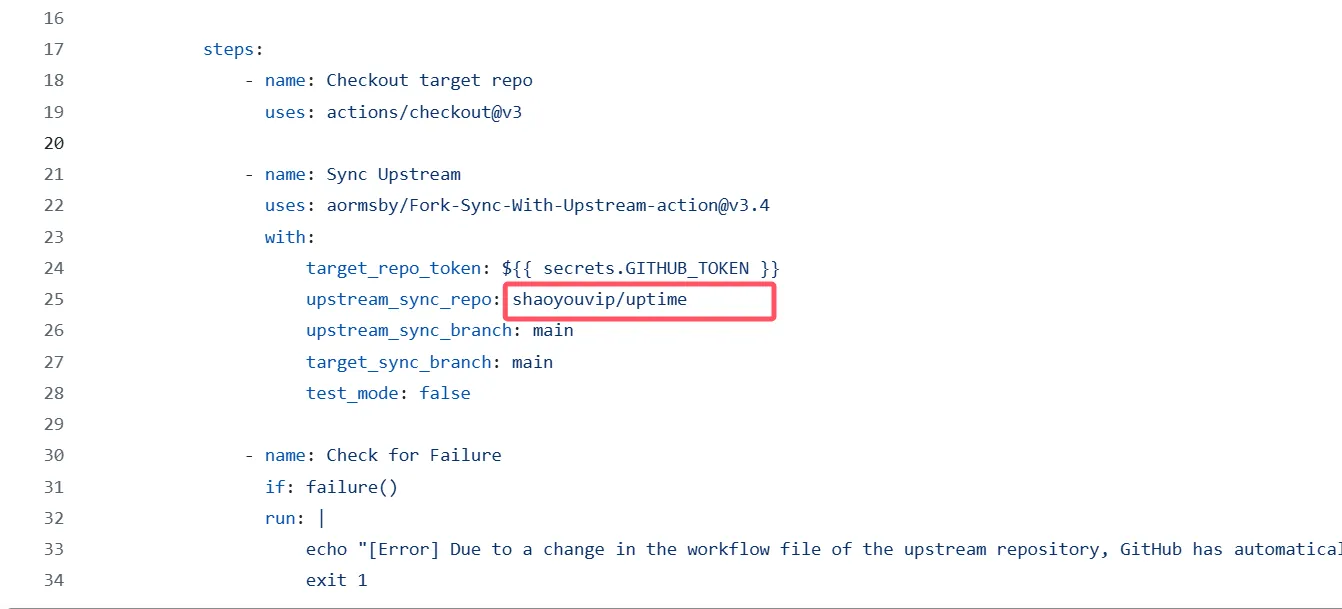
-
同步分支名称( 超级无敌要注意 )
- 修改 upstream_sync_branch 和 target_sync_branch 项,填写你要同步分支的名称,例如我填的main,一般来说fork的分支名称都一样,但这只是一般情况,也有的老项目默认的分支不是main,在 Sync Upstream 步骤中请一定确保你上游项目的分支路径。
提交保持文件
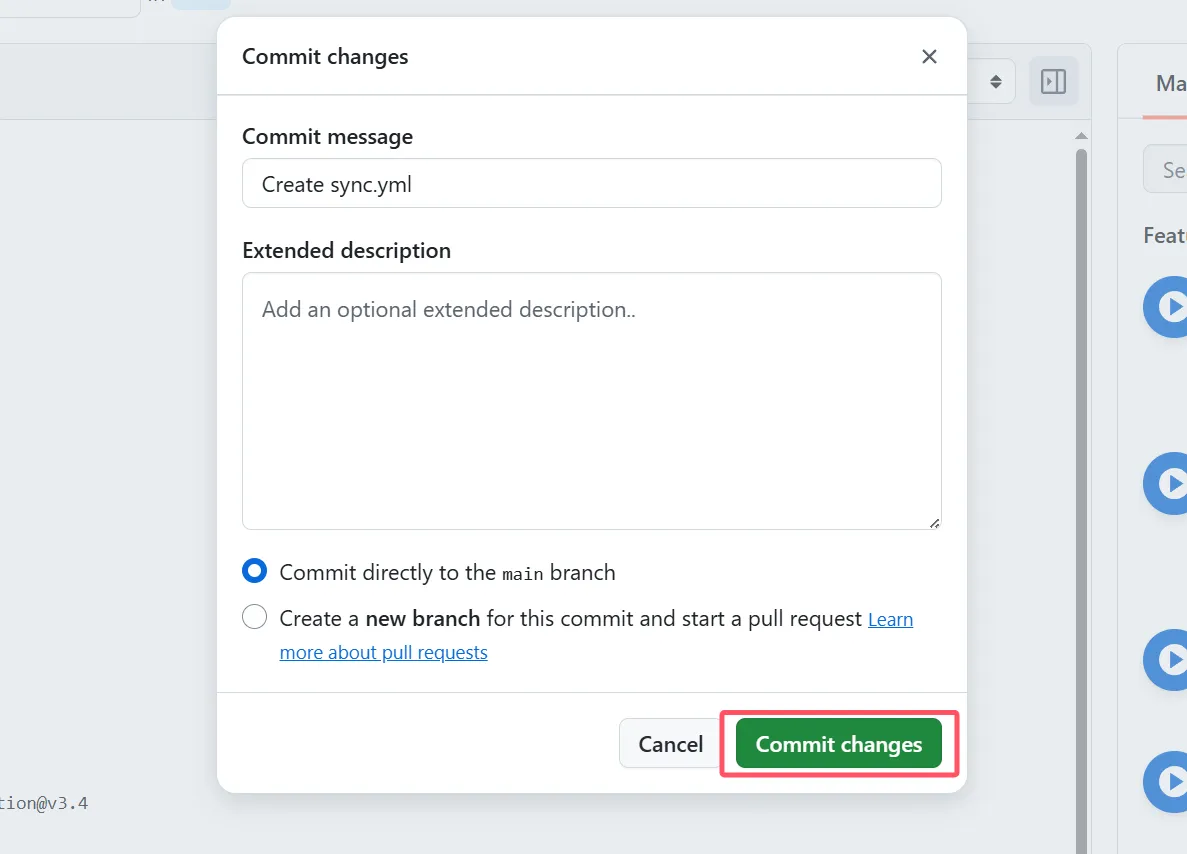
- 填写完成后点右上角 commit changes ,然后确认。
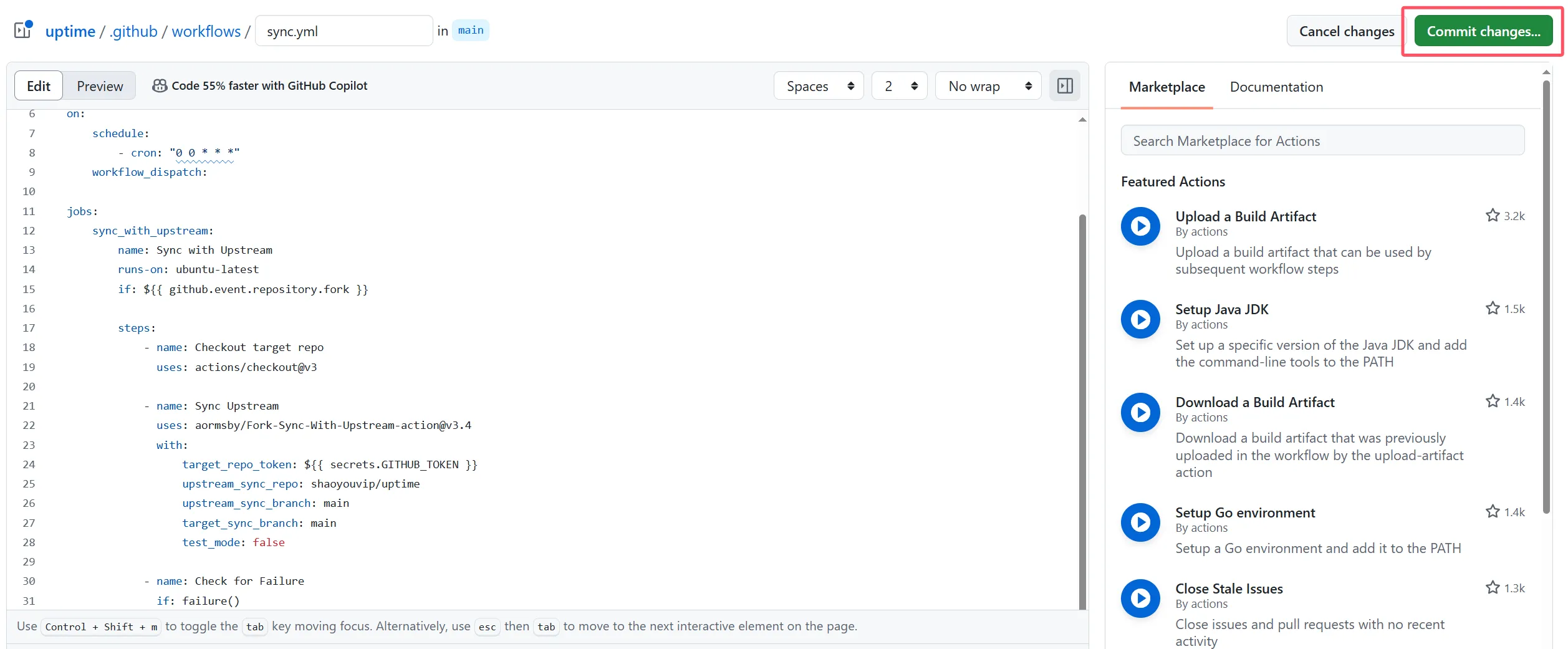
测试运行
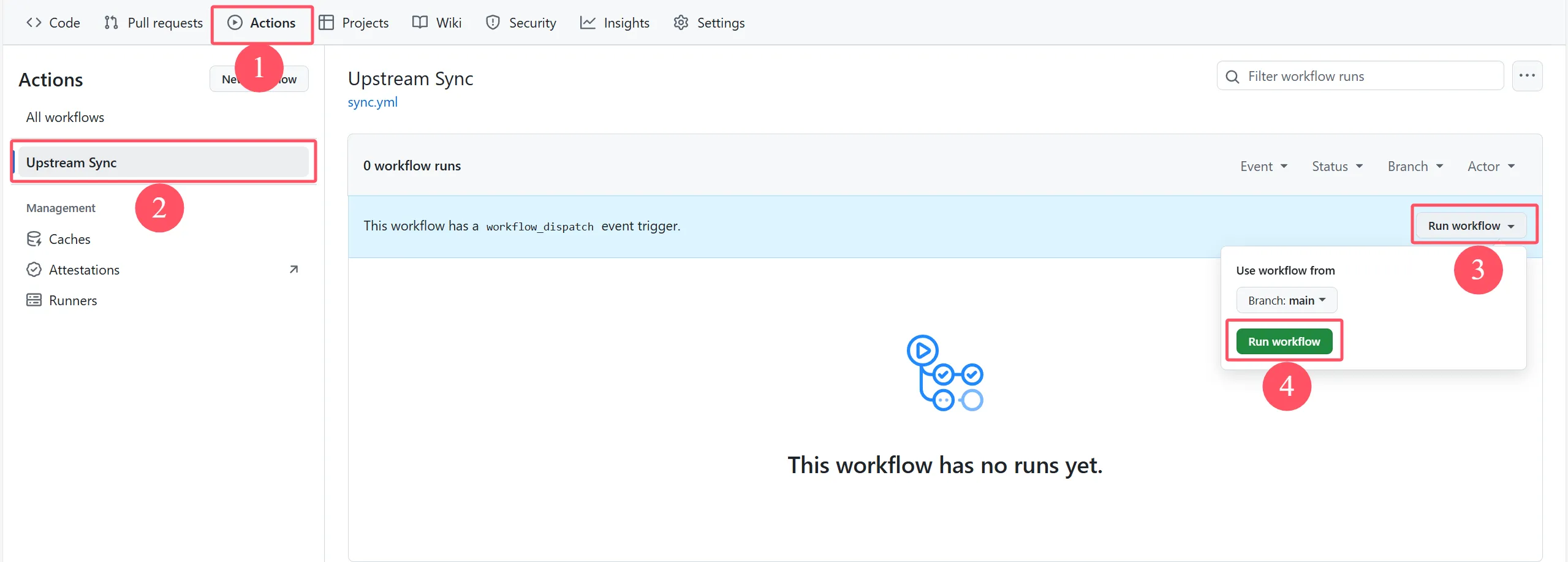
- 回到 Actions 页面,点击你刚刚创建的 workflow ,点击 Run workflow
运行成功
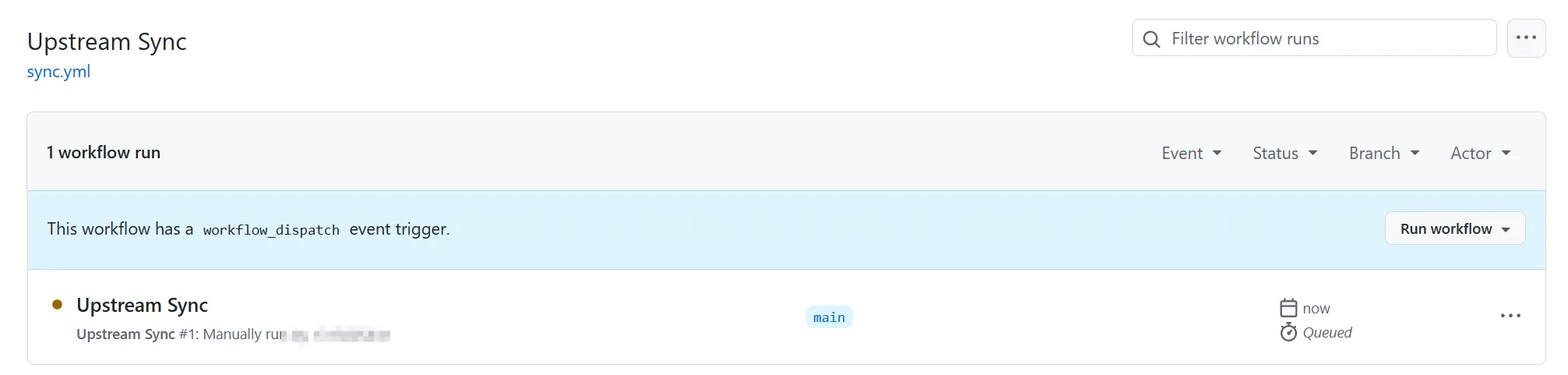
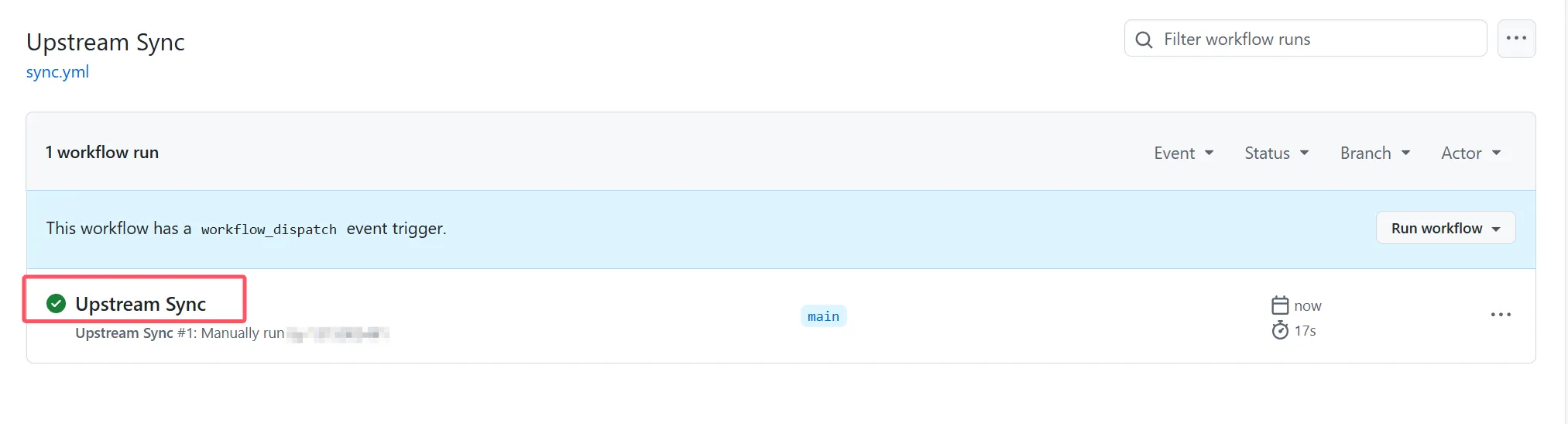
- 刷新页面可以看到效果
使用 Pull 自动同步(第二种方法 )
-
设置 Pull 帮助我们和上游保持一致同步
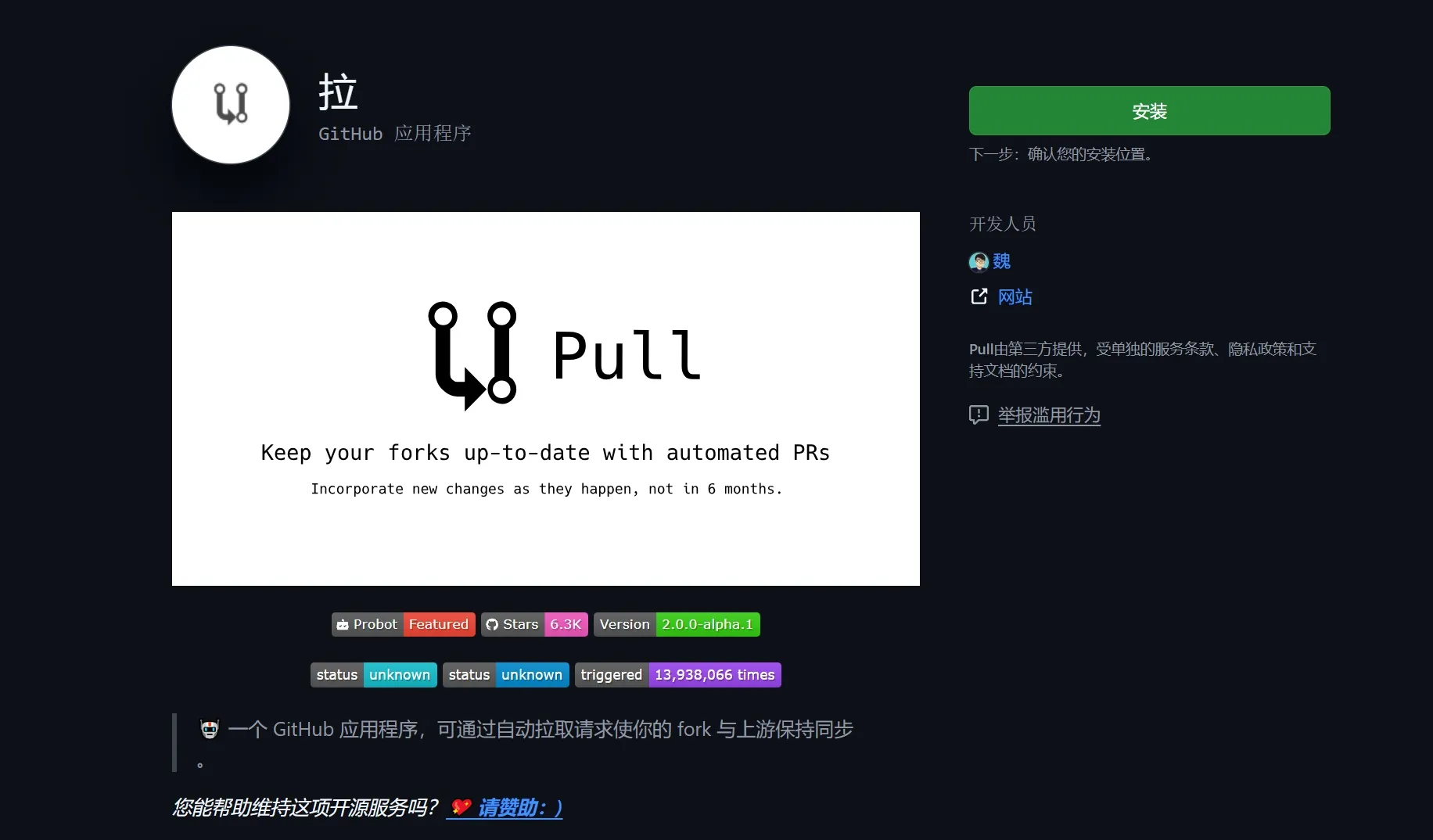
- 打开 设置pull 点击右上角安装,选择你的账户。
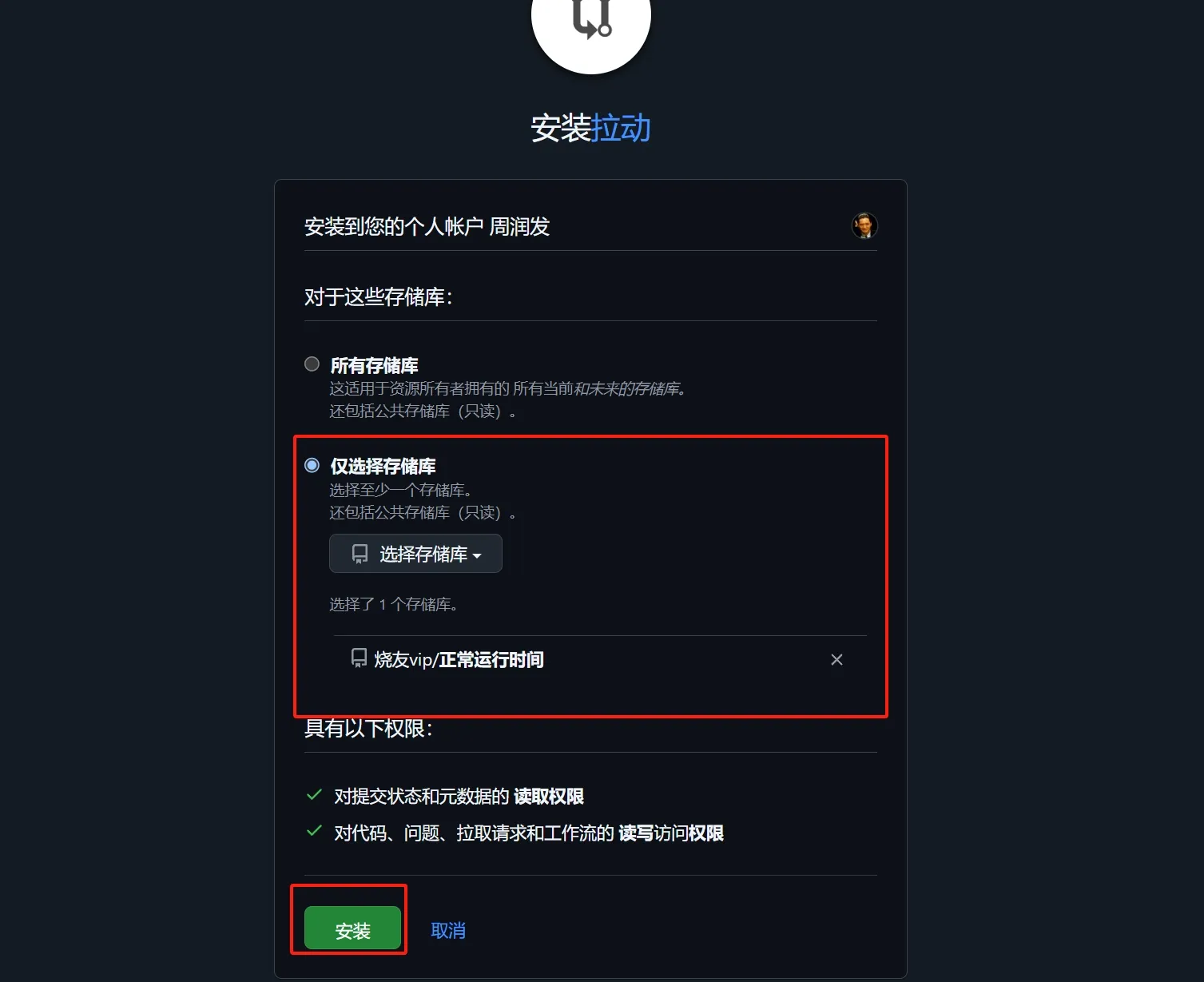
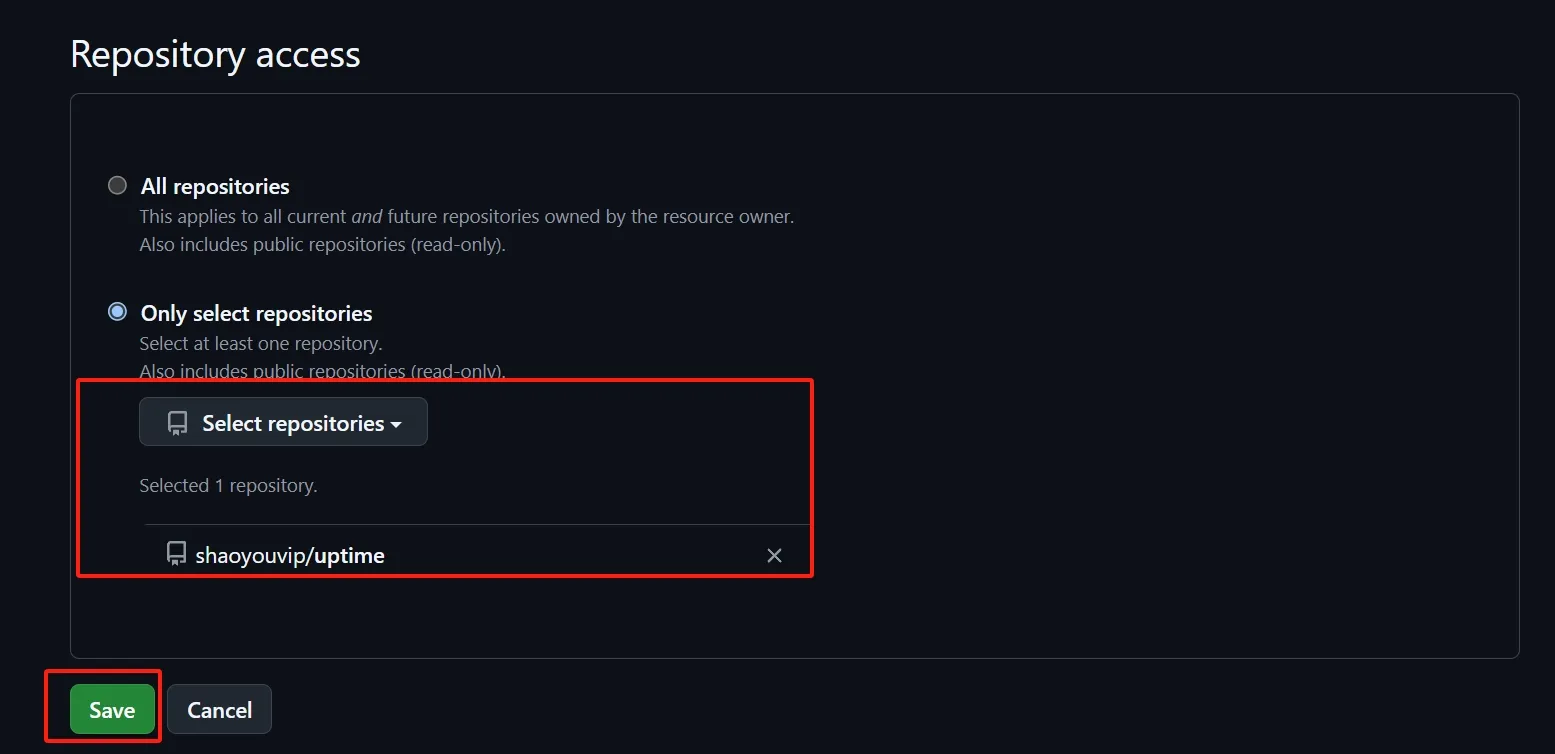
- 选择你要同步的项目,选择储存库不要选所有储存库,有些项目并不是最新的就是好的。你自己选择。
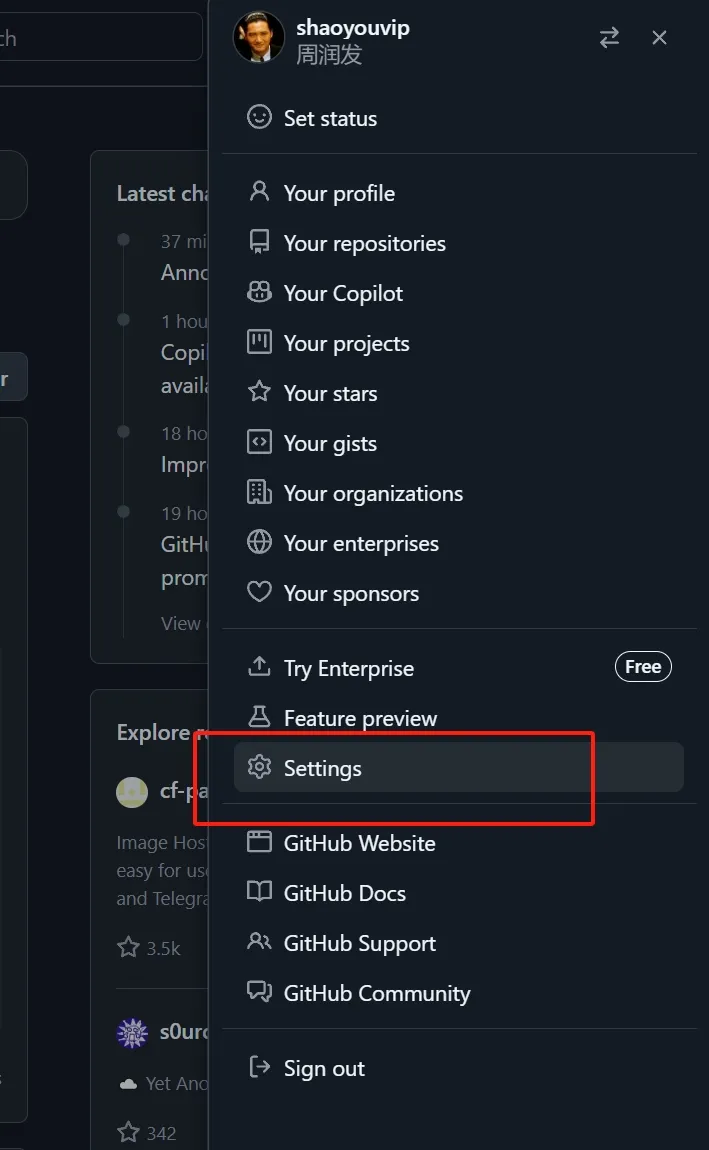
- 下次如要添加新的项目同步可以在你的Github 账户设置
- 找到 Applications 应用 Configure 配置你的 新项目
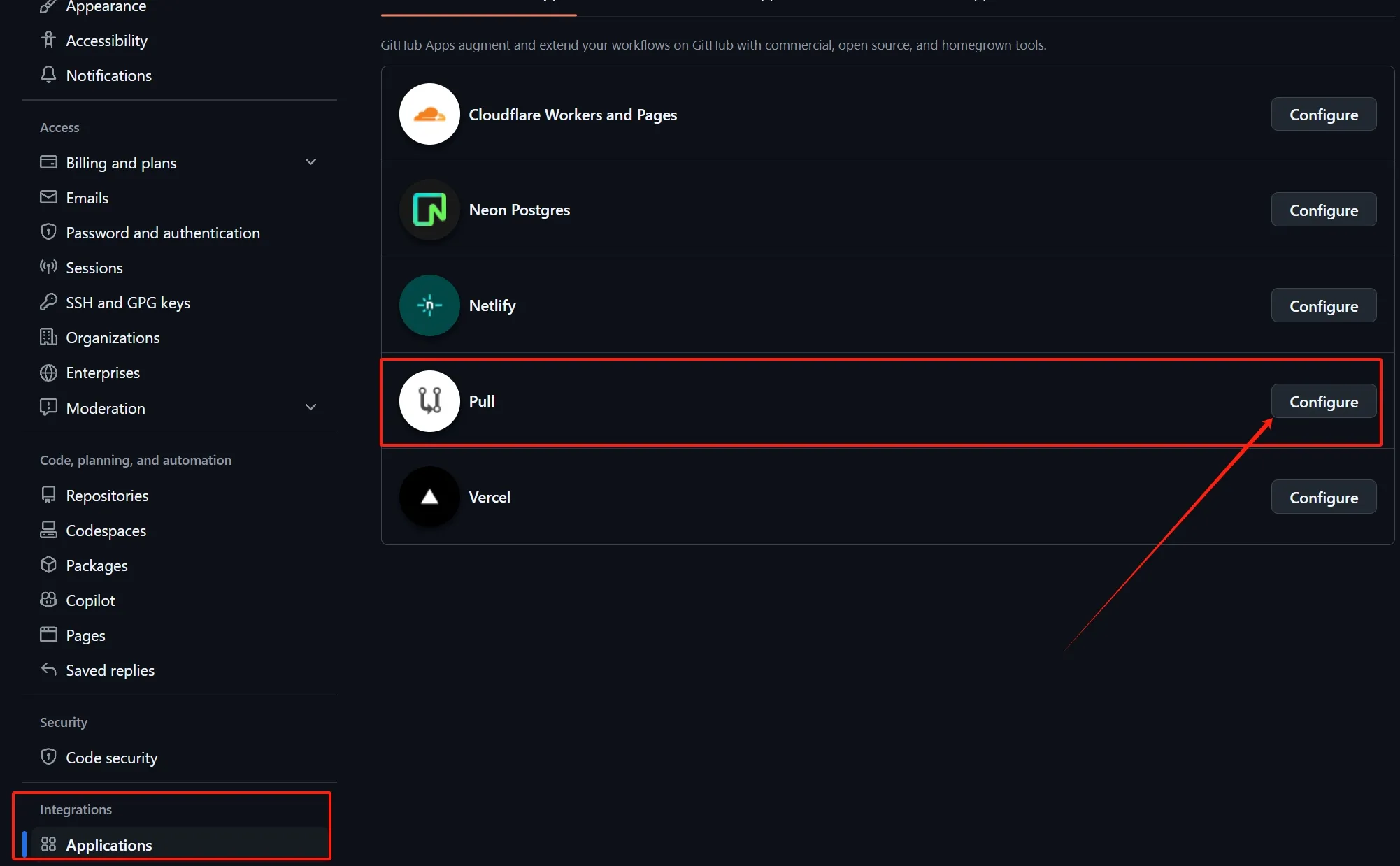
- 选择你要同步的项目就可以了,完事结束!
声明:
-
本文转载自周润发